

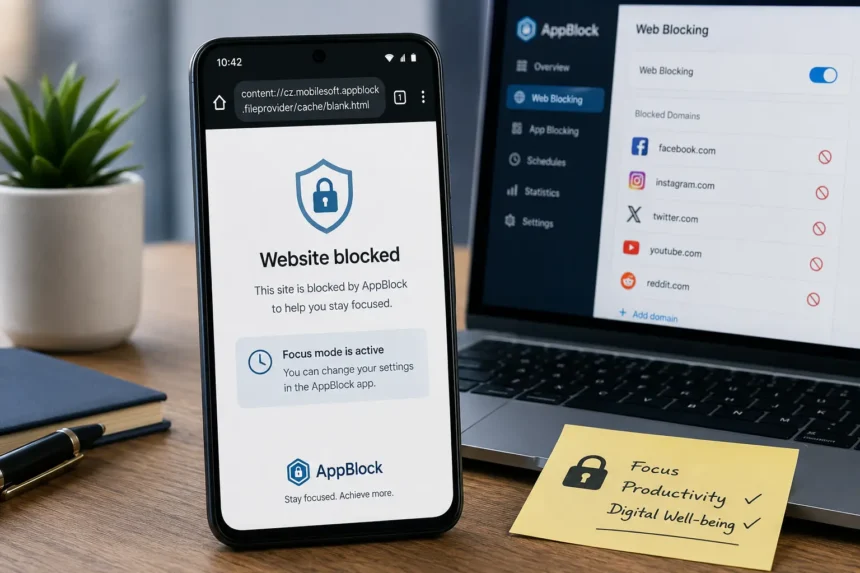
The string content://cz.mobilesoft.appblock.fileprovider/cache/blank.html is an Android Content URI generated by AppBlock, a productivity application developed by MobileSoft s.r.o. It appears in your browser address bar or device logs whenever AppBlock redirects a blocked website to a locally cached placeholder file. It is not a virus, not spyware, and not a sign of any system compromise.
- What is content://cz.mobilesoft.appblock.fileprovider/cache/blank.html?
- Anatomy of the URI: Breaking Down Each Component
- What Is AppBlock and How Does It Work?
- Why Does AppBlock Use a Blank HTML File in Cache?
- When and Where Does This URI Appear?
- Technical Implementation of FileProvider in AppBlock
- Is content://cz.mobilesoft.appblock.fileprovider/cache/blank.html Safe?
- Security Considerations and Best Practices
- How to Fix or Stop content://cz.mobilesoft.appblock.fileprovider/cache/blank.html from Appearing
- Adjust AppBlock Website Blocklist
- Pause AppBlock Temporarily
- Clear AppBlock Cache
- Use Native Browser Content Controls
- Uninstall AppBlock
- Managing AppBlock Cache Across Different Devices
- Advanced Use Cases and Performance Optimization
- Conclusion
- FAQs
- FAQ 1: What does content://cz.mobilesoft.appblock.fileprovider/cache/blank.html mean?
- FAQ 2: Is content://cz.mobilesoft.appblock.fileprovider/cache/blank.html a virus or malware?
- FAQ 3: Why does this URI appear in my browser history?
- FAQ 4: What is cz null in Android logs?
- FAQ 5: Can other apps access content://cz.mobilesoft.appblock.fileprovider/cache/blank.html?
- FAQ 6: Should I manually delete the blank.html file from AppBlock’s cache?
- FAQ 7: Does this URI indicate surveillance or tracking activity?
- FAQ 8: How do I permanently stop this URI from appearing?
If you have seen this URI and wondered whether something is wrong with your device, the answer is no. It is a deliberate, security-conscious design choice built into Android’s content provider system.
What is content://cz.mobilesoft.appblock.fileprovider/cache/blank.html?
This URI points to a blank HTML file stored inside AppBlock’s cache directory on your Android device. When you attempt to visit a website that AppBlock has blocked, the app intercepts the navigation request and redirects your browser to this file instead of connecting to an external server.
The result: a blank or minimal page loads instantly from local storage, and your browser’s address bar displays this URI string. Android records each redirect as a visited location, which is why it also appears in browsing history.
The file itself is a static document with no executable code. It does not transmit data to external servers, and it does not track your general browsing activity beyond confirming that a specific blocked domain was accessed.
Anatomy of the URI: Breaking Down Each Component
URI Component Breakdown
Every segment of this URI carries a specific function within Android’s content provider architecture.
| URI Segment | Role |
| content:// | Identifies this as a content URI, handled by Android’s ContentResolver system |
| cz.mobilesoft.appblock.fileprovider | The unique authority (package identifier) for AppBlock’s FileProvider |
| /cache/blank.html | Path to the temporary cached HTML file inside AppBlock’s storage |
The authority segment — cz.mobilesoft.appblock.fileprovider — follows Android’s reverse-domain naming convention. The “cz” prefix represents the Czech Republic country code, which is part of MobileSoft’s registered package name, not an error or flag.
Why Android Uses Content URIs Instead of File Paths
Traditional file paths expose the raw location of data on the device, which creates security vulnerabilities. Android’s content URI system solves this by abstracting file access through controlled gateways called content providers.
Key security advantages over direct file paths:
- Sandboxing — each app’s data stays isolated from others
- Granular app-level permissions — access is granted only when explicitly needed
- Revocable URI permissions — temporary access can be withdrawn after use
- Path abstraction — no external app can see the underlying file system structure
This is not unique to AppBlock. Any well-built Android application handling cross-app file sharing uses this same FileProvider mechanism.
What Is AppBlock and How Does It Work?
Overview of AppBlock by MobileSoft
AppBlock is an Android productivity app built by MobileSoft s.r.o., a Czech-based mobile software company. Its core purpose is improving digital well-being by helping users restrict access to distracting apps, websites, and notifications during focus sessions.
The app is available on the Google Play Store and operates within Android’s standard permission model. It does not require root access to function.
Key Features of AppBlock
- App and website blocking — restricts access to social media, gaming applications, and other time-wasting platforms.
- Smart scheduling — activates blocking rules automatically based on time, location, or connected WiFi networks.
- Usage analytics — tracks screen time patterns and provides insight into digital habits.
- Strict mode — prevents users from bypassing their own restrictions
How AppBlock Enforces Blocking Internally
AppBlock uses Android’s Accessibility Services, VPN layer, and restriction content APIs to monitor and intercept navigation in the background. When a blocked domain is detected, the app redirects the browser to its locally cached blank.html file instead of allowing the connection to proceed.
Internally, it maintains schedules, logs, and temp files as part of this process. The interaction data it collects stays on-device and supports usage analytics — it does not leave the device without explicit permission.
Why Does AppBlock Use a Blank HTML File in Cache?
When AppBlock needs to display a web-based element — such as a block notification screen or interstitial message — it loads a template from its local cache rather than fetching one from a remote server.
This approach offers four concrete advantages:
- Performance — loading a cached local file is significantly faster than a network request
- Reliability — the block page appears even when there is no internet connection
- Consistent interface — the visual output stays uniform across all blocking events, maintaining design language continuity
- No abrupt errors — users see a clean, intentional block rather than a browser error page
The blank.html file stored in AppBlock’s cache directory is the underlying resource powering these redirects.
When and Where Does This URI Appear?
During AppBlock Usage
The most common trigger is active website blocking. Each time AppBlock intercepts a navigation attempt to a domain on your blocklist, the browser receives this URI as the redirect destination. The page loads immediately from device storage, and the URI string appears in the address bar.
In Browser History and System Logs
Android treats every AppBlock redirect as a visited page. Because of this, the URI accumulates in the browsing history during sessions where blocking is active. In device logs, you may also see entries related to WebView redirects, cache processing, and file access logging — all generated by AppBlock’s normal restriction enforcement operations.
In Developer and Debugging Environments
Developers examining app behavior through logcat or crash reports may encounter this URI when AppBlock interacts with WebView components. It can appear during layout debugging, resource management checks, and load time monitoring. Its presence in logs is informational, not indicative of an error.
Technical Implementation of FileProvider in AppBlock
FileProvider Configuration
AppBlock declares its FileProvider in the Android manifest using the following structure:
- android: authorities — set to cz.mobilesoft.appblock.fileprovider, making it uniquely identifiable
- android: exported — set to false, preventing other apps from accessing it directly
- android:grantUriPermissions — enables controlled, temporary URI sharing
- FILE_PROVIDER_PATHS — references an XML/file_paths configuration that defines which directories the provider can access
This configuration ensures that only authorized components within or granted by the app can reach the cached file.
Accessing Content via ContentResolver
Programmatically, the URI is accessed through Android’s ContentResolver using Uri.parse() to construct the URI object, then openInputStream() to read the file content. The process includes proper exception handling for SecurityException (insufficient permissions) and FileNotFoundException (file not yet generated), using ParcelFileDescriptor and FileInputStream for reliable file access.
WebView Integration
When a browser or in-app WebView needs to load the blocked page, AppBlock intercepts the request via WebViewClient’s shouldInterceptRequest method. It checks whether the incoming URL uses the content scheme, then serves the cached blank.html as a WebResourceResponse with content type text/html and UTF-8 encoding. This process supports offline content caching and handles blocked content without network dependency.
Is content://cz.mobilesoft.appblock.fileprovider/cache/blank.html Safe?
Yes. The URI references a locally stored, static HTML file with no executable code. It does not connect to external servers, does not track general browsing activity, and does not expose personal data.
| Security Question | Answer |
| Contains malware or spyware? | No |
| Sends data to external servers? | No |
| Tracks browsing outside the blocklist? | No |
| Exposes personal data? | No |
| Requires action from the user? | No |
If you did not install AppBlock but still see this URI, check your installed apps for anything under the cz. mobilesoft namespace and verify it matches the official Play Store listing. An unrecognized app generating this URI would be worth investigating — but AppBlock itself is legitimate.
Security Considerations and Best Practices
For developers implementing similar FileProvider systems, several practices reduce risk:
- Authority uniqueness — use app-specific authority names to prevent URI conflicts with other applications
- Path restrictions — limit shared directories in file_paths.xml to reduce the attack surface
- Permission management — grant temporary, scoped URI permissions and revoke them after use
- Input validation — sanitize all file requests to prevent path traversal attacks
- Insecure configurations — never set android: exported to true for a FileProvider unless explicitly required
Permission leakage and data injection are the two most common risks in poorly configured FileProvider setups. AppBlock’s implementation avoids both through its sandboxed, non-exported configuration.
How to Fix or Stop content://cz.mobilesoft.appblock.fileprovider/cache/blank.html from Appearing
Adjust AppBlock Website Blocklist
Open AppBlock, tap the gear icon, and navigate to Web Filtering. Review your active blocked domains and remove any entries you no longer want restricted. Once a domain is removed from the blocklist, the URI will no longer load in its place.
Pause AppBlock Temporarily
Pull down the notification panel and tap the AppBlock notification. Select Pause or disable blocking. This stops all web navigation interception until you reactivate it. The redirect URI will not appear while blocking is paused.
Clear AppBlock Cache
Go to Settings → Apps → AppBlock → Storage → Clear Cache. This removes blank.html and other temporary data. AppBlock will regenerate these files automatically the next time blocking activates, so this is a temporary measure rather than a permanent fix.
Use Native Browser Content Controls
Chrome’s built-in site controls (accessible via chrome://settings/content) allow you to block or allow specific websites without any third-party application. This removes the need for AppBlock entirely if your goal is simple site restriction.
Uninstall AppBlock
Navigate to Device Settings → Applications → AppBlock → Uninstall. Removing the app eliminates the cz. mobilesoft.appblock package and all cached files permanently. The URI will never appear again. If you still need content restrictions, Chrome OS and most Android browsers include native content controls worth exploring.
Managing AppBlock Cache Across Different Devices
AppBlock operates consistently across Android smartphones, tablets, and Chromebooks. The URI appears identically on all supported device types because the underlying FileProvider mechanism is part of the Android platform itself, not device-specific code.
On Chromebooks, Android app settings are accessible through the dedicated Android subsystem. The cache management steps — Settings → Apps → AppBlock → Storage — remain the same. Clearing cache and modifying blocking rules follow identical procedures regardless of whether the device runs standard Android or Chrome OS.
Advanced Use Cases and Performance Optimization
Advanced Integration Patterns
Developers building similar content-management systems can extend Android’s FileProvider to handle custom file sharing with enterprise-grade security. Key architectural patterns include:
- App Shell Architecture — pre-cache the interface shell so it loads instantly, even offline
- Service worker registration — enable background synchronization for progressive web app features
- Offline fallbacks — define fallback content using cache-path and files-path configurations in file_paths.xml
- Progressive enhancement — layer functionality as network resources become available
These patterns are particularly valuable for enterprise-grade mobility solutions where data privacy and consistent offline performance are non-negotiable.
Performance Optimization Strategies
| Caching Strategy | Best For | Trade-off |
| Memory caching | Frequently accessed, small files | High speed, limited capacity |
| Disk caching | Large or persistent content | Moderate speed, large capacity |
| Network caching | Remote resource proxying | Variable speed, bandwidth dependent |
| Hybrid caching | Complex app workflows | Optimized per use case |
Beyond strategy selection, effective resource management requires streaming for large files rather than loading them fully into memory, handling file operations on background threads, and implementing error recovery mechanisms with reliable fallback paths for file-access failures.
Conclusion
The URI content://cz.mobilesoft.appblock.fileprovider/cache/blank.html is a normal, intentional output of AppBlock’s website blocking system. MobileSoft built it using Android’s FileProvider architecture — a security-first approach to local file sharing that protects user data while delivering fast, consistent performance. The blank.html file at its core is a static placeholder, nothing more. For everyday users, it requires no action. For developers, it demonstrates a clean implementation of Android’s content URI and caching strategies that balance security, user experience, and productivity without exposing any underlying infrastructure.
FAQs
FAQ 1: What does content://cz.mobilesoft.appblock.fileprovider/cache/blank.html mean?
It is an Android Content URI that points to a blank HTML file stored in AppBlock’s cache directory. When AppBlock blocks a website, it redirects your browser to this local file instead of making an internet request, which is why this URI appears in your address bar.
FAQ 2: Is content://cz.mobilesoft.appblock.fileprovider/cache/blank.html a virus or malware?
No. It belongs to AppBlock, a legitimate productivity app by MobileSoft available on the Google Play Store. The file is a static local document that does not connect to external servers or contain any executable code.
FAQ 3: Why does this URI appear in my browser history?
Android logs every AppBlock redirect as a visited page. Each entry in your browser history corresponds to a blocked navigation attempt during that session — not a separate website you visited.
FAQ 4: What is cz null in Android logs?
The “cz” in cz.mobilesoft.appblock is the Czech Republic country code, part of AppBlock’s reverse-domain package name. A “cz null” log entry means AppBlock attempted an operation that returned no result. It is harmless.
FAQ 5: Can other apps access content://cz.mobilesoft.appblock.fileprovider/cache/blank.html?
No. Android’s sandboxing and FileProvider system restrict access to apps that have been explicitly granted URI permissions. The FileProvider is configured with android: exported set to false, blocking all unauthorized access.
FAQ 6: Should I manually delete the blank.html file from AppBlock’s cache?
Manual deletion is unnecessary. Clearing AppBlock’s cache via Settings → Apps → AppBlock → Storage achieves the same result more reliably. AppBlock regenerates the file automatically whenever blocking is activated again.
FAQ 7: Does this URI indicate surveillance or tracking activity?
No. AppBlock only monitors navigation attempts against your configured blocklist. General browsing activity outside of restriction enforcement receives no tracking, and no data is sent off-device.
FAQ 8: How do I permanently stop this URI from appearing?
Uninstall AppBlock through Device Settings → Applications. This removes the cz. mobilesoft.appblock package entirely. Alternatively, disable all website blocking rules within the app while keeping it installed, or switch to Chrome’s native content controls at chrome://settings/content.